
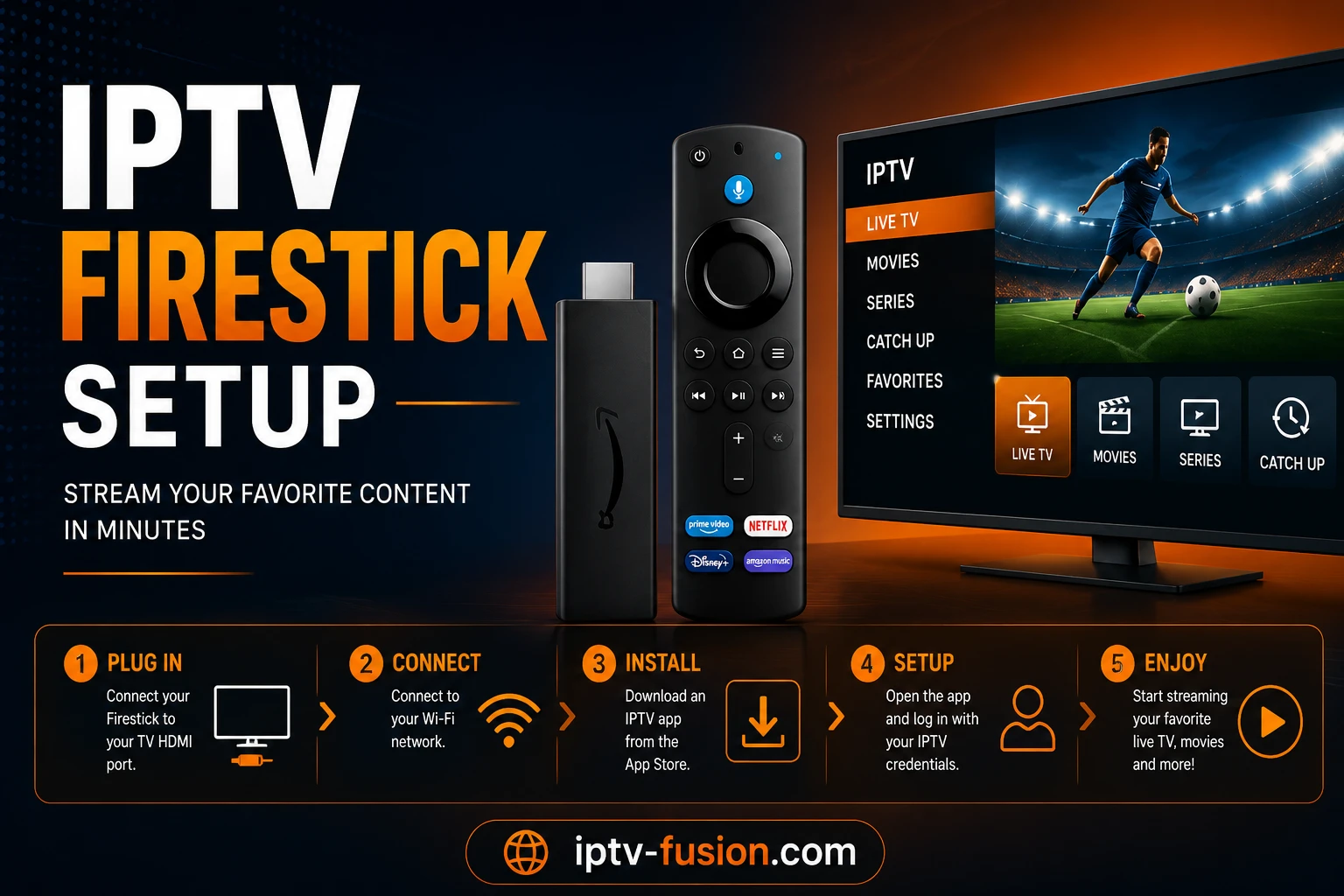
To set up IPTV on a Firestick, you enable "Apps from Unknown Sources" in the settings, install the Downloader app, use it to install an IPTV player like TiviMate or IPTV Smarters, and then enter your M3U URL or Xtream Codes from your provider. The whole process takes under 10 minutes and requires no technical knowledge. This guide walks you through every step with IPTV Fusion as the example.
Why Use a Firestick for IPTV?
The Amazon Firestick is the most popular device for IPTV worldwide, and for good reason. It's inexpensive, plugs into any TV's HDMI port, and runs a version of Android that supports every major IPTV app. Unlike a Smart TV with a locked-down operating system, the Firestick lets you install third-party players like TiviMate and customise your setup exactly how you want it.
It's also portable. You can unplug your Firestick, take it on holiday, plug it into a hotel TV, and keep watching your channels wherever you have internet. Combined with a service like IPTV Fusion that works on any device, a Firestick turns any television into a fully-featured streaming hub for a fraction of the cost of a new Smart TV.
What You'll Need Before You Start
Before beginning the setup, make sure you have the following ready:
- An Amazon Firestick — any generation works, including the Fire TV Stick 4K and 4K Max
- Your IPTV credentials — an M3U URL or Xtream Codes (server URL, username, password). With IPTV Fusion, these arrive by email instantly after you start a trial or subscribe.
- A stable internet connection — at least 10 Mbps for HD, 25 Mbps for 4K streaming
- About 10 minutes — first-time setup is quick once you know the steps
If you don't have credentials yet, you can start a free 24-hour IPTV Fusion trial with no credit card required and receive your login details by email immediately.
Step 1: Enable Apps from Unknown Sources
By default, the Firestick only installs apps from the Amazon Appstore. IPTV players like TiviMate are installed from outside the store, so you need to allow this first:
- From the Firestick home screen, go to Settings (the gear icon)
- Select My Fire TV (or Device on older models)
- Choose Developer Options
- Turn on Apps from Unknown Sources
- Confirm the warning prompt by selecting Turn On
This is a standard Amazon setting, not a hack or jailbreak. It simply allows you to install apps that aren't in the official store — exactly like enabling app installation on an Android phone.
Step 2: Install the Downloader App
Downloader is a free, official app that lets you install other apps on your Firestick. It's available directly in the Amazon Appstore:
- Go to the Find menu on the home screen and select Search
- Type "Downloader" and select the orange Downloader app by AFTVnews
- Select Download (or Get) and wait for it to install
- Open the app and allow it the permissions it requests
Step 3: Install Your IPTV Player
You have two excellent choices for an IPTV player on Firestick. Here's how they compare:
| App | Best for | Cost | Key features |
|---|---|---|---|
| TiviMate | Best overall experience | Free + Premium | Beautiful EPG, recording, multi-screen, catch-up TV |
| IPTV Smarters Pro | Beginners | Free | Simple setup, built-in player, easy interface |
To install TiviMate via Downloader: open Downloader, type the TiviMate APK URL into the address bar (available from the official TiviMate site), and follow the install prompt. To install IPTV Smarters Pro: it's often available directly in the Amazon Appstore, so you can simply search for it in the Find menu and install it like any other app.
We recommend TiviMate for the best Firestick experience — it has the most polished interface, a full electronic programme guide, recording support, and smooth 4K playback. IPTV Smarters Pro is the simpler choice if you just want to get watching quickly.
Step 4: Add Your IPTV Fusion Playlist
Once your player is installed, you add your subscription. The exact steps depend on the app, but the process is similar:
In TiviMate:
- Open TiviMate and select Add Playlist
- Choose Xtream Codes (recommended) or M3U Playlist
- Enter the credentials from your IPTV Fusion welcome email: server URL, username, and password
- Select Next and wait while the playlist loads — for 20,000+ channels this takes 30–60 seconds
- Optionally add the EPG (programme guide) URL when prompted
In IPTV Smarters Pro:
- Open the app and select Add New User
- Choose Login with Xtream Codes API
- Enter any name, then your IPTV Fusion server URL, username, and password
- Select Add User — your channels, movies, and series load automatically
Step 5: Optimize for 4K and Smooth Playback
To get the best picture quality and avoid buffering on your Firestick:
- Set your display to 4K: Go to Settings → Display & Sounds → Display and select 4K Ultra HD with HDR/Dolby Vision if your TV supports it
- Use hardware decoding: In TiviMate, go to Settings → Player and set the decoder to Hardware for smoother 4K playback
- Connect via Ethernet if possible: A wired connection using a USB-to-Ethernet adapter eliminates the Wi-Fi instability that causes most buffering
- Restart your Firestick weekly: This clears memory and keeps performance smooth
For advanced optimization, your internet speed is critical. Most IPTV streams are encoded at 6–12 Mbps for HD content and 15–25 Mbps for 4K. If you're using Wi-Fi, position your Firestick close to your router and avoid physical barriers between the router and device. For the best experience, upgrade to a Wi-Fi 6E or Wi-Fi 5 router that supports wider channels. You can check your actual speeds using a speed test app — Ookla Speedtest is available free on the Amazon Appstore. Additionally, always update your IPTV player apps regularly through the appstore or within the apps themselves, as updates contain performance improvements, bug fixes, and security patches.

How Do I Fix IPTV Buffering on Firestick?
Buffering is the most common complaint, and it's almost always a network issue rather than a problem with the service. Here's how to fix it:
- Switch to a 5GHz Wi-Fi network or, better, use a wired Ethernet adapter. Wi-Fi packet loss is the number one cause of buffering.
- Check your internet speed — you need at least 10 Mbps for HD and 25 Mbps for 4K. Run a speed test on the Firestick before a big event.
- Clear the app cache via Settings → Applications → Manage Installed Applications → [App Name] → Clear Cache.
- Use a Firestick 4K Max — older Fire TV Stick models have less processing power and can struggle with high-bitrate 4K streams.
A premium provider like IPTV Fusion runs dedicated servers with a 99.9% uptime guarantee, so server-side buffering is rare. If you've optimised your network and still see issues, our 24/7 support team can help.
Advanced troubleshooting: if buffering persists after the above steps, check your ISP's speed during peak hours (often 7–11 PM locally), as shared residential bandwidth may be bottlenecked. Consider switching to a different IPTV provider if streams consistently struggle — some providers use better CDNs optimized for your region. You can also test your connection stability using a ping utility (Ping Plotter is available free) to identify packet loss spikes. Older Firestick models (2nd generation and earlier) have only 1GB RAM and will struggle with 4K; upgrading to a 4K Max model dramatically improves reliability. Finally, if your TV supports it, switch from HDMI to a higher-spec HDMI 2.1 cable to ensure the display isn't dropping frames during decoding.
The Bottom Line: IPTV on Firestick in 2026
Setting up IPTV on a Firestick is genuinely quick: enable unknown sources, install Downloader, add an IPTV player like TiviMate, and enter your credentials. Within 10 minutes you'll have access to thousands of live channels and a vast on-demand library in crystal-clear 4K — all on a device that costs less than a single month of cable.
Ready to try it? Start a free 24-hour IPTV Fusion trial — no credit card required — and your login details arrive by email instantly. Explore our subscription plans or learn more about Amazon Fire TV devices to pick the best one for your setup.